 Ghostpilot
Home · Works with · VS Code extension
How to use Ghostpilot in VS Code
Explain, review, optimise or solve the code you select, with answers in a panel beside your code. Works in VS Code, VS Code Insiders, Cursor, Windsurf and VSCodium, on Mac, Windows and Linux.
Install and use it in five steps
Install from the Marketplace
Ghostpilot is published on the Visual Studio Marketplace. In VS Code, open the Extensions view (Ctrl+Shift+X on Windows, ⇧⌘X on a Mac), search for Ghostpilot and click Install. Or open Ghostpilot on the Visual Studio Marketplace and click Install there.
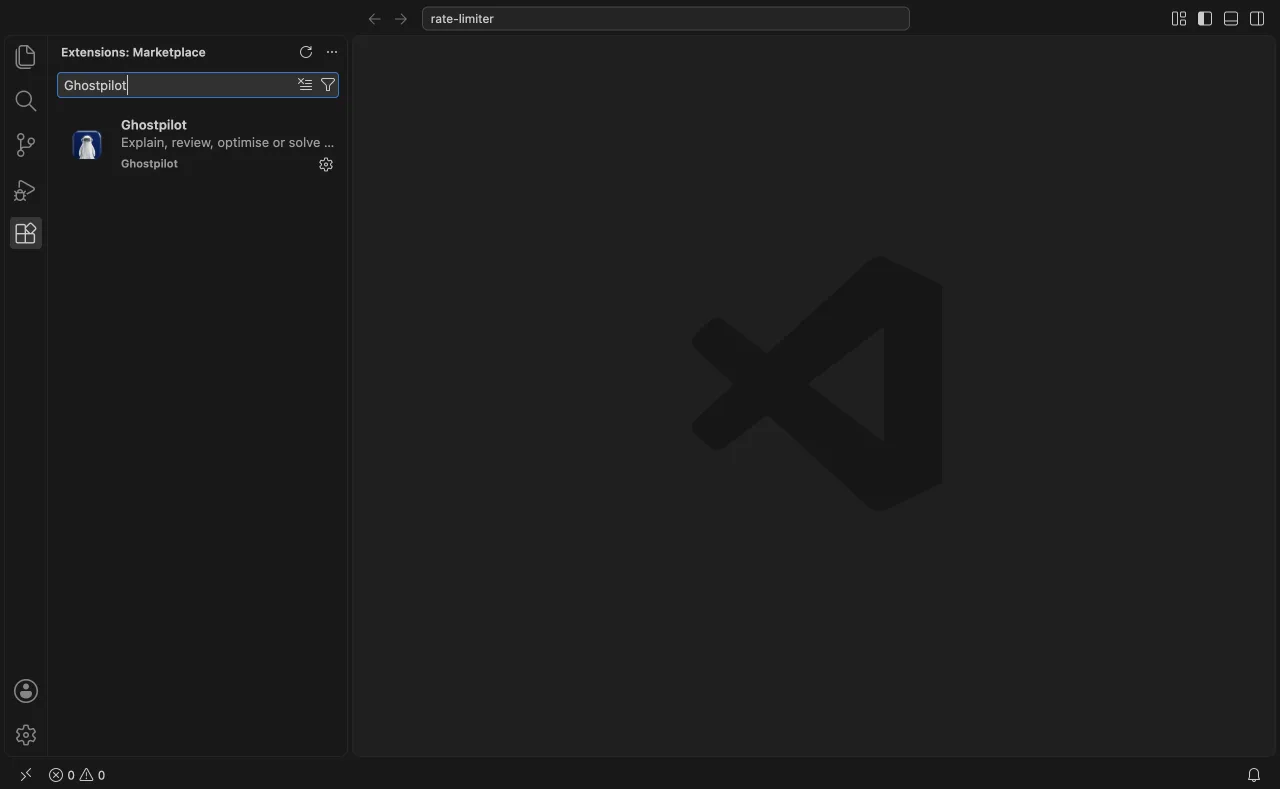
Using Cursor, Windsurf or VSCodium?
These editors install from Open VSX, where Ghostpilot is published too. Open the Extensions view, search for Ghostpilot and click Install, the same as in VS Code. If your editor uses another store, download the extension package (a .vsix file) and choose Install from VSIX… in the Extensions view's ··· menu.
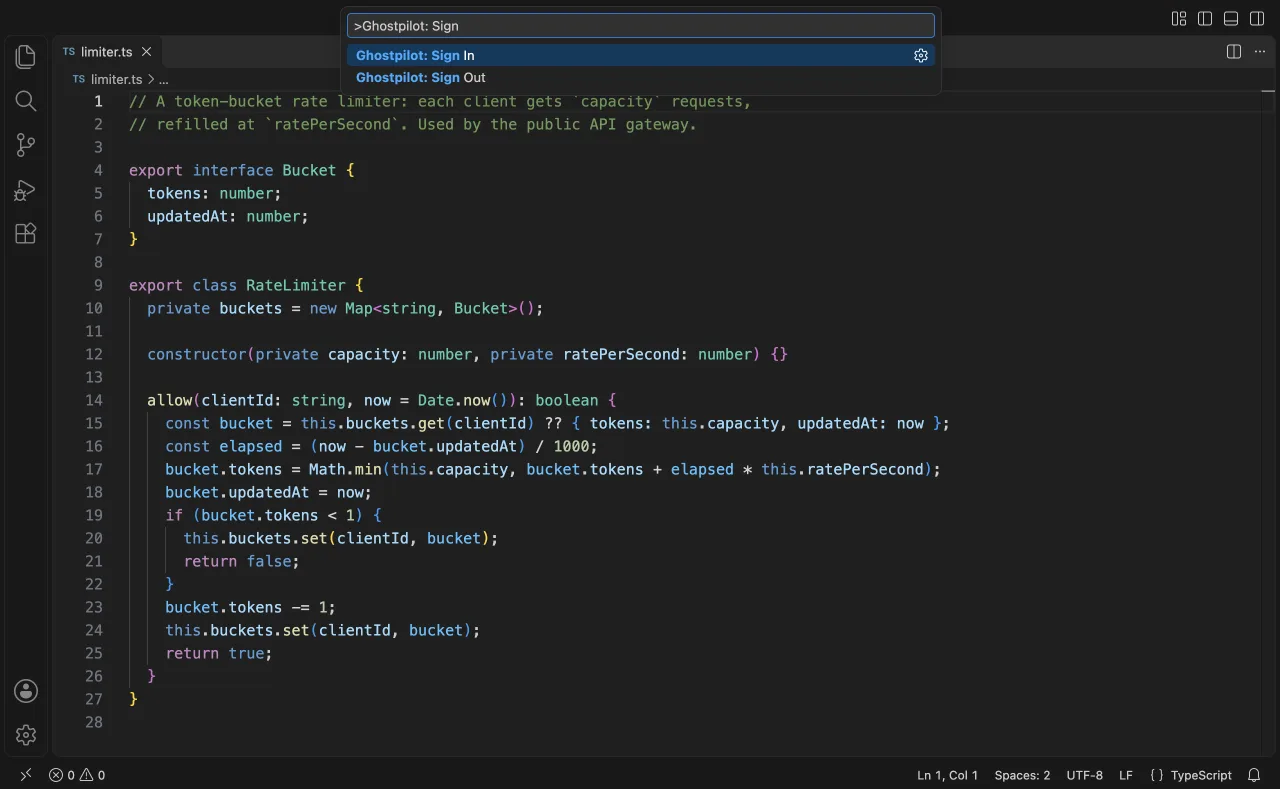
Sign in
Run any Ghostpilot command, or Ghostpilot: Sign In from the Command Palette. Your browser opens to sign in with Apple, Google or an email code, then brings you back to the editor.
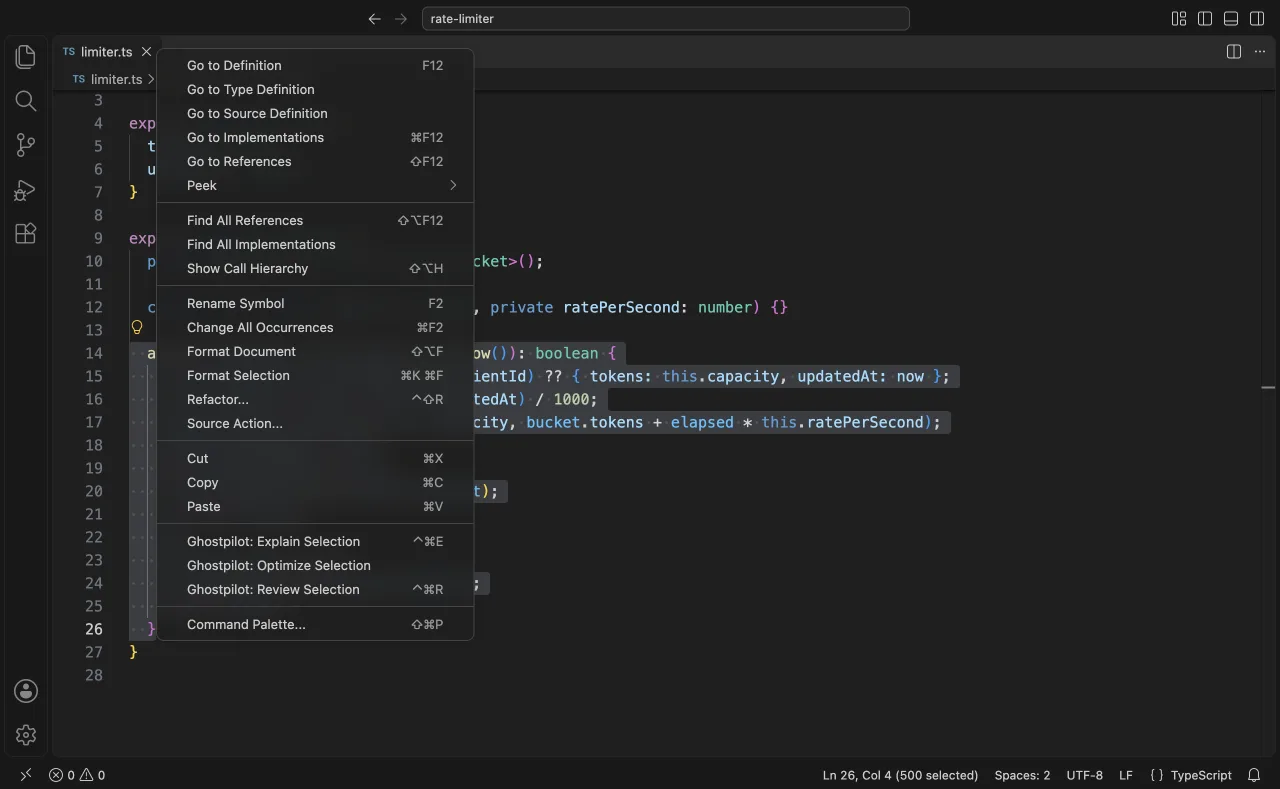
Select code and ask
Select a function or a block and use a shortcut or the right-click menu. With nothing selected, Solve uses the whole file, which suits a problem statement in a comment.
Read the answer
The answer appears in a panel beside your code. With the Ghostpilot app running on your Mac, it can go to the app's overlay instead: set Ghostpilot: Answer In to
auto,apporeditor.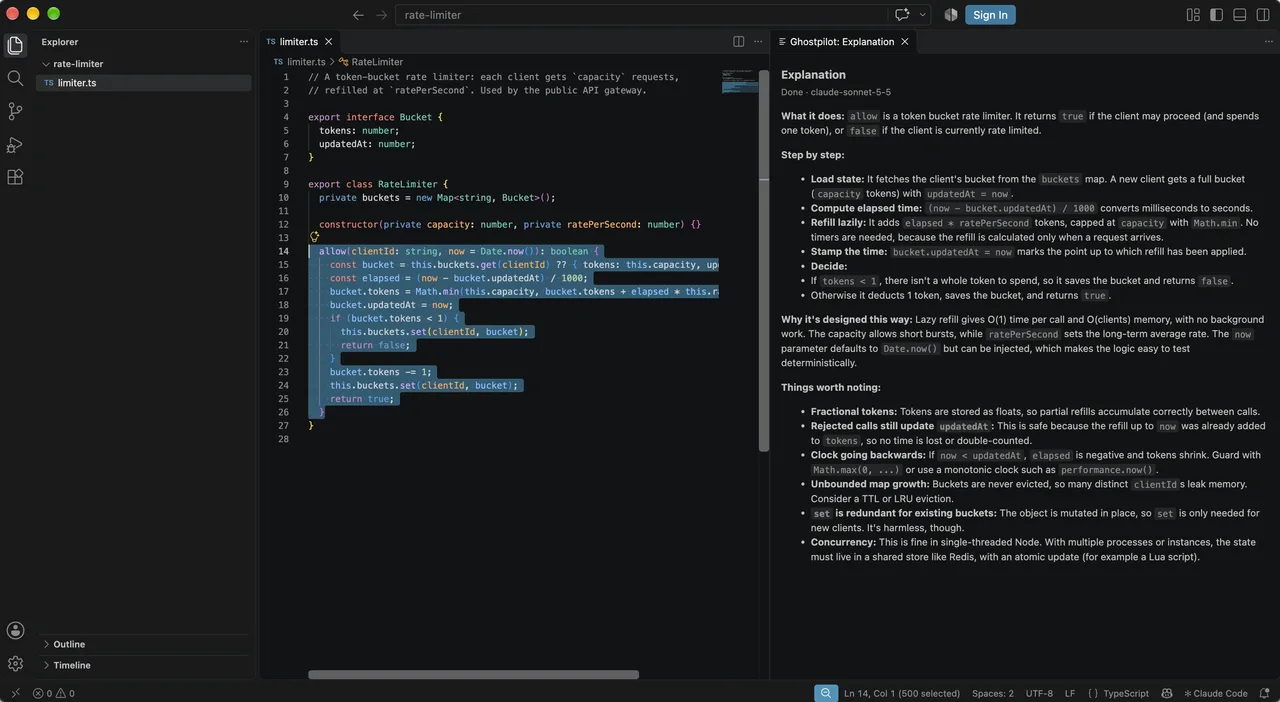
Commands and shortcuts
| Command | Windows and Linux | Mac |
|---|---|---|
| Ghostpilot: Explain Selection | Ctrl+Alt+E | ⌃⌘E |
| Ghostpilot: Review Selection | Ctrl+Alt+R | ⌃⌘R |
| Ghostpilot: Solve Problem in Selection (whole file if nothing is selected) | Ctrl+Alt+S | ⌃⌘S |
| Ghostpilot: Optimize Selection | Right-click menu | |
| Ghostpilot: Sign In / Sign Out | Command Palette | |
If something doesn't work
- Sign-in didn't come back to the editor: finish signing in in the browser, then run Ghostpilot: Sign In again.
- A shortcut does nothing: another extension may use the same keys. Check Keyboard Shortcuts and search "Ghostpilot".
- The answer went to the overlay: set Ghostpilot: Answer In to
editor.
Privacy and plans
The code you send goes to Ghostpilot and its AI provider to write the answer and isn't stored beyond usage metering. Your sign-in is kept in the system keychain through VS Code's secret storage. Answers count towards your Ghostpilot plan. Privacy policy.
Use Ghostpilot only where AI assistance is allowed. If an employer, school or exam doesn't permit assistants, respect that.
Install Ghostpilot for VS Code
Free to start, and the same account as the desktop app and the Chrome extension.
Zoom, Google Meet, Microsoft Teams, Webex, Slack, FaceTime, Chrome and Visual Studio Code are trademarks of their owners. Ghostpilot is not affiliated with or endorsed by them.