 Ghostpilot
Home · Works with · Chrome extension
How to use the Ghostpilot Chrome extension
A side panel for coding practice in the browser: it reads the problem and your code on the page and gives you the approach, working code, complexity and edge cases. Setup takes about a minute.
Install and use it in six steps
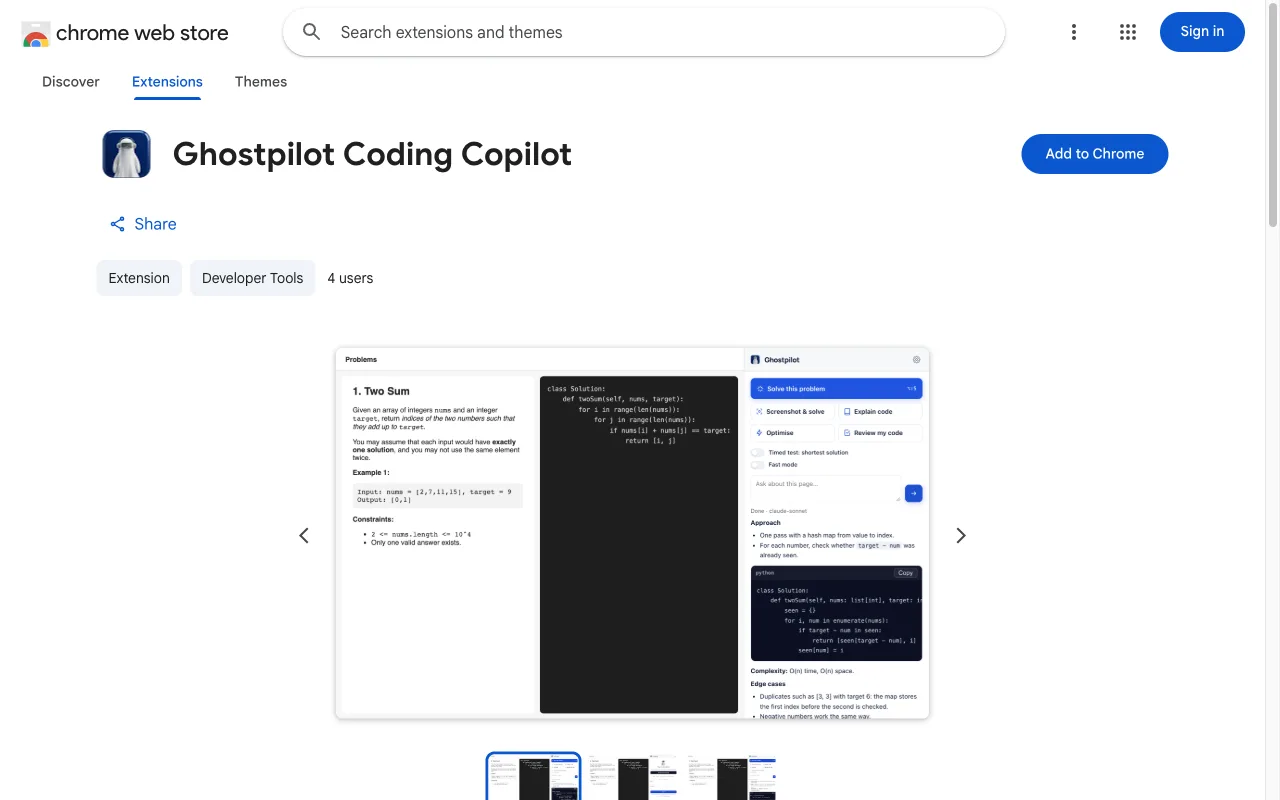
Add it to Chrome
Open Ghostpilot Coding Copilot on the Chrome Web Store and click Add to Chrome, then Add extension. It works the same way in Edge, Brave and Arc, from the same store.
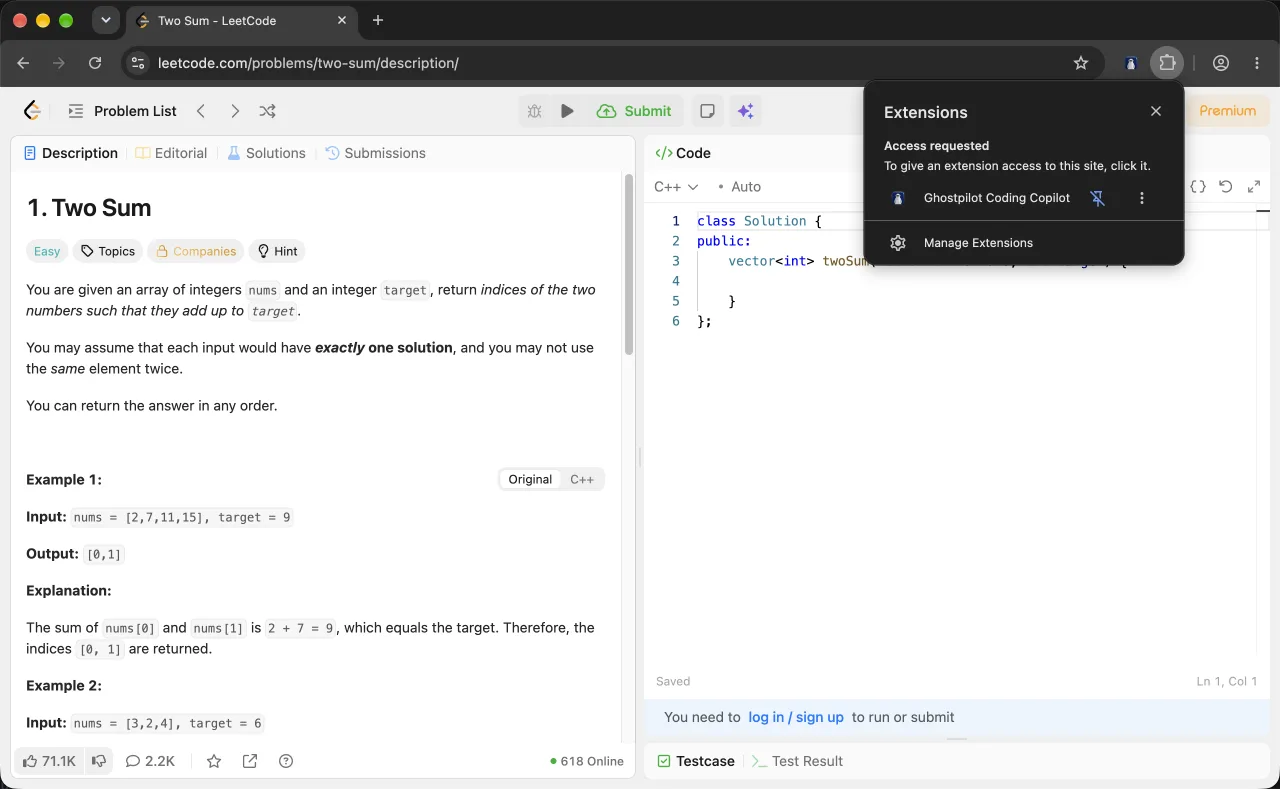
Pin it to the toolbar
Click the puzzle-piece icon next to the address bar and pin Ghostpilot, so it is one click away.
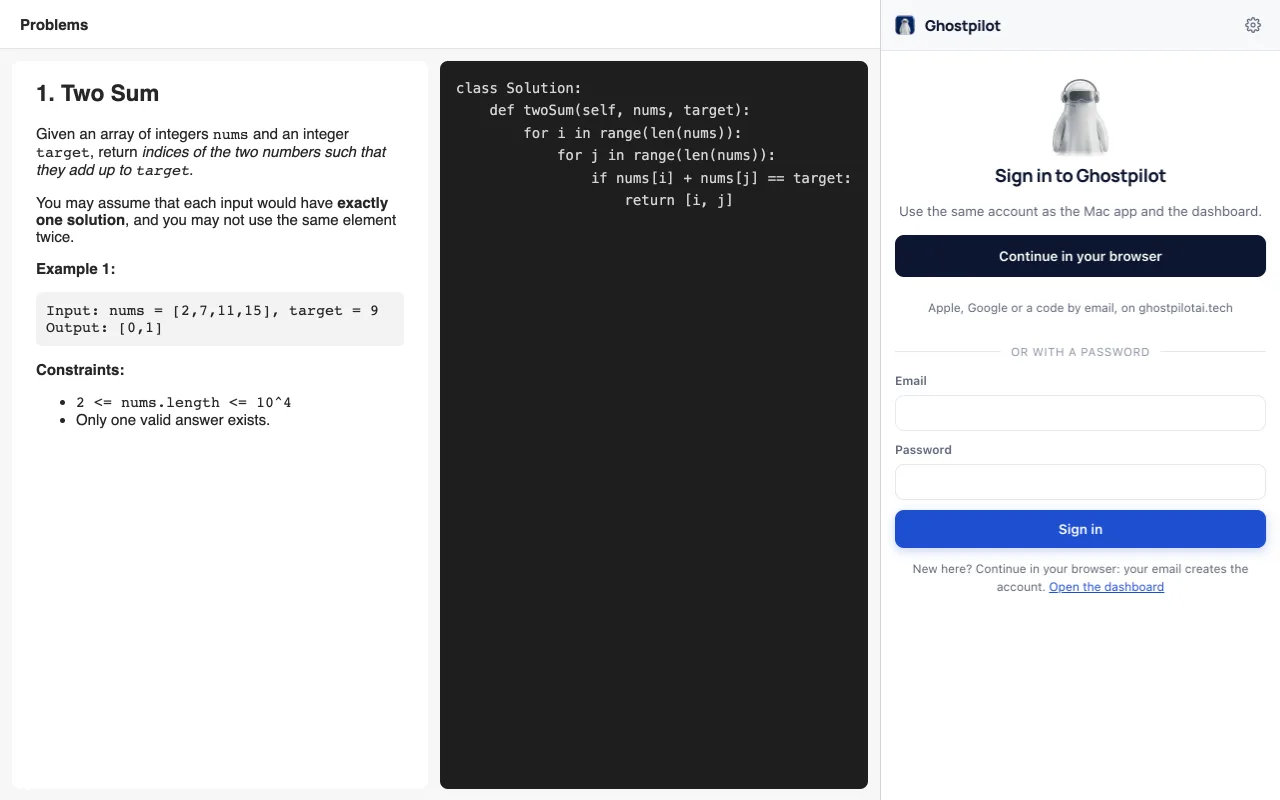
Sign in
Click the Ghostpilot icon: the side panel opens. Choose Continue in your browser to sign in with Apple, Google or an email code, or use your email and password. Your plan is the same as in the desktop app.
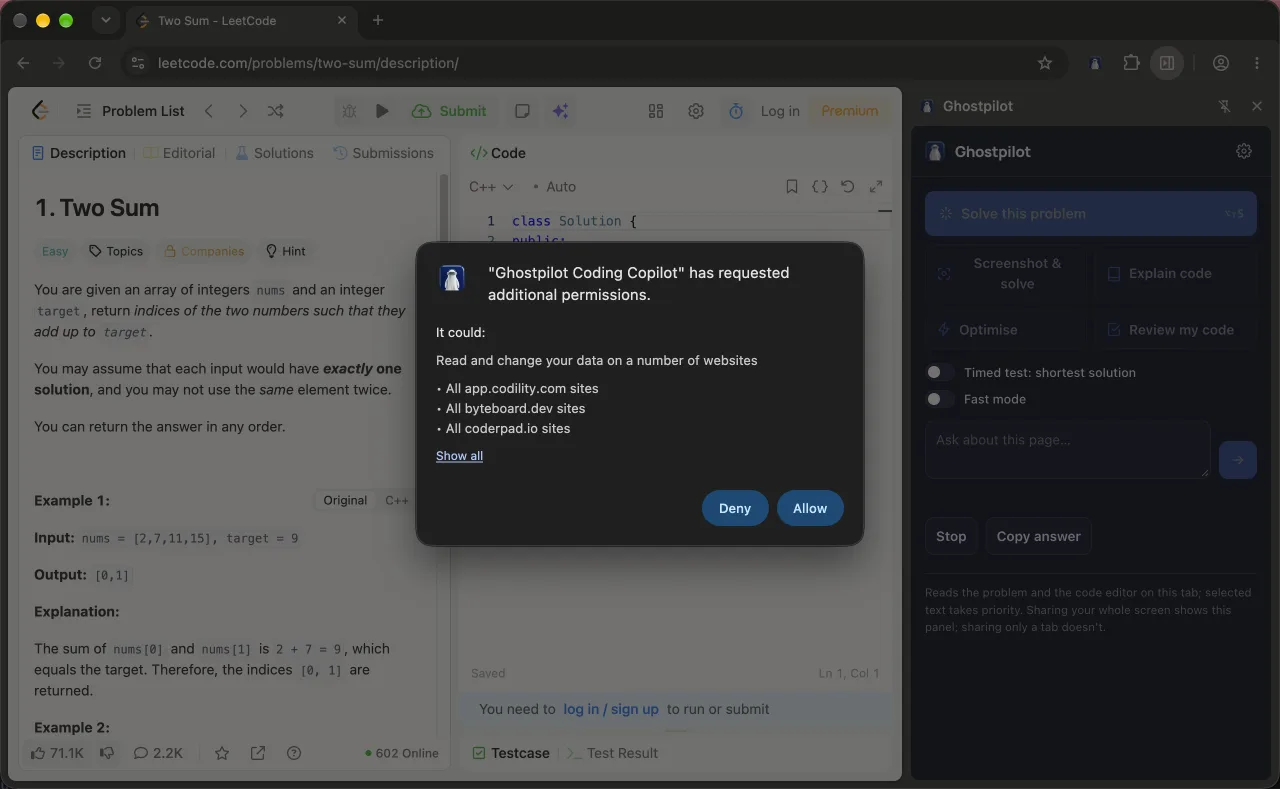
Open a problem and allow the site
Open a problem on LeetCode, HackerRank, CodeSignal, Codility, CoderPad or HackerEarth. The first time on a site, the panel asks for access to that one site: allow it so Ghostpilot can read the problem and the editor.
Solve, explain, optimise or review
Press Solve this problem (Alt+Shift+S) for the approach, working code, complexity and edge cases. For diagrams or problems drawn on a canvas, use Screenshot & solve (Alt+Shift+X). Select code first to explain, optimise or review just that part, or type a question in the Ask box.
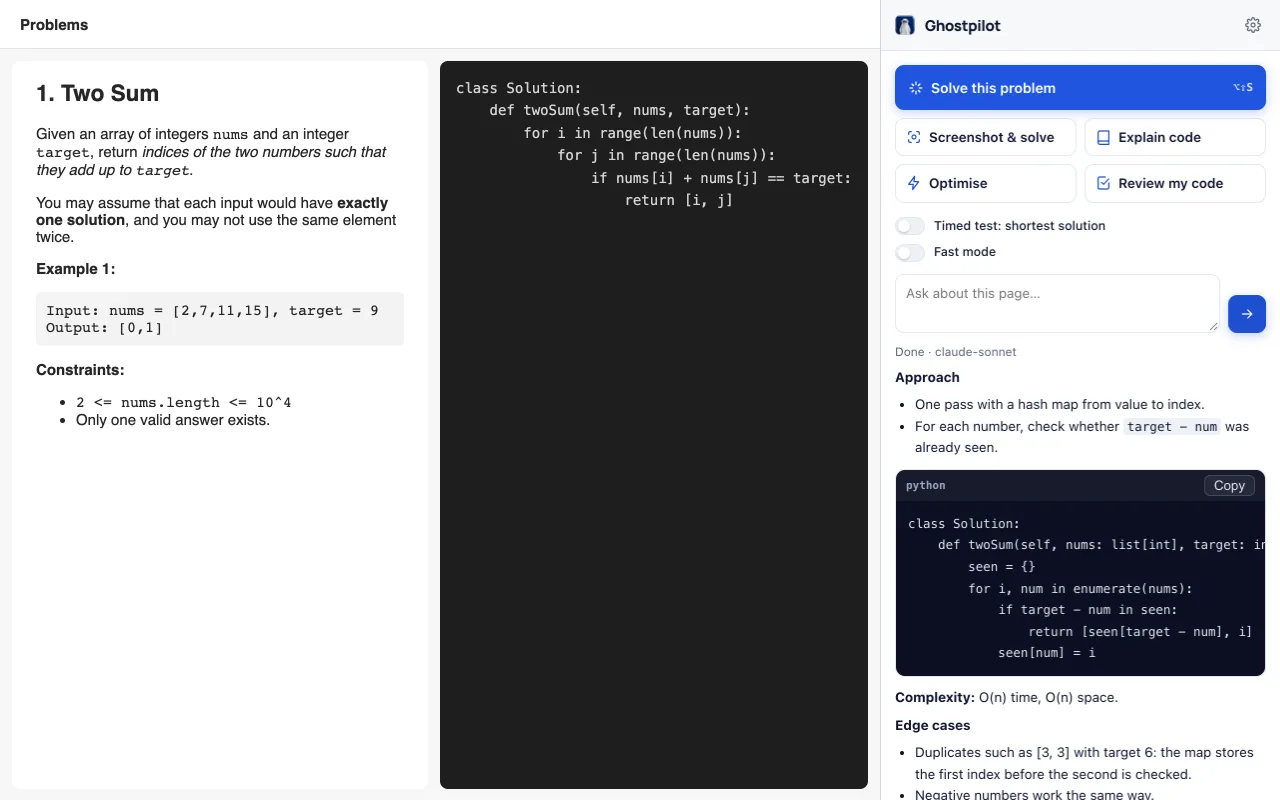
Adjust the settings
Timed test gives the shortest correct solution with minimal text. Fast mode answers quicker from the page text. You can also set the programming language, the model and the language of explanations.
Keyboard shortcuts
| Action | Shortcut |
|---|---|
| Open the panel | Alt+Shift+G |
| Solve the problem on the page | Alt+Shift+S |
| Screenshot the tab and solve | Alt+Shift+X |
Change them at chrome://extensions/shortcuts. The same keys work on Mac (Option instead of Alt).
Screen sharing
If you share only a tab, the side panel isn't included. If you share your whole screen, it is: browser panels can't be hidden from screen capture the way the desktop app's overlay can. For calls, use the desktop app.
If something doesn't work
- The panel doesn't open: click the toolbar icon (not the puzzle menu), or press Alt+Shift+G.
- "Can't read this page": allow access to the site when the panel asks, or use Screenshot & solve.
- Signed out: open the panel and sign in again; your plan and usage are kept.
- Wrong code language: set it in the panel's settings; it overrides what the page suggests.
Privacy and plans
The extension reads the page only when you click the icon or use a shortcut. What you send goes to Ghostpilot and its AI provider to write the answer and isn't stored beyond usage metering. Answers count towards your Ghostpilot plan. Privacy policy.
Use Ghostpilot only where AI assistance is allowed. If an employer, school or exam doesn't permit assistants, respect that.
Add Ghostpilot to Chrome
Free to start, and the same account as the desktop app and the dashboard.
Zoom, Google Meet, Microsoft Teams, Webex, Slack, FaceTime, Chrome and Visual Studio Code are trademarks of their owners. Ghostpilot is not affiliated with or endorsed by them.